
Choose the correct PDF file
Pattern downloads may include separate A0, A3, and A4 files. Open the file that matches the paper you plan to use, and avoid mixing paper-size versions.
Help
Before printing, choose the correct PDF paper size, print a test page at actual size, and assemble tiled pages in page-number order.
Pattern downloads may include separate A0, A3, and A4 files. Open the file that matches the paper you plan to use, and avoid mixing paper-size versions.
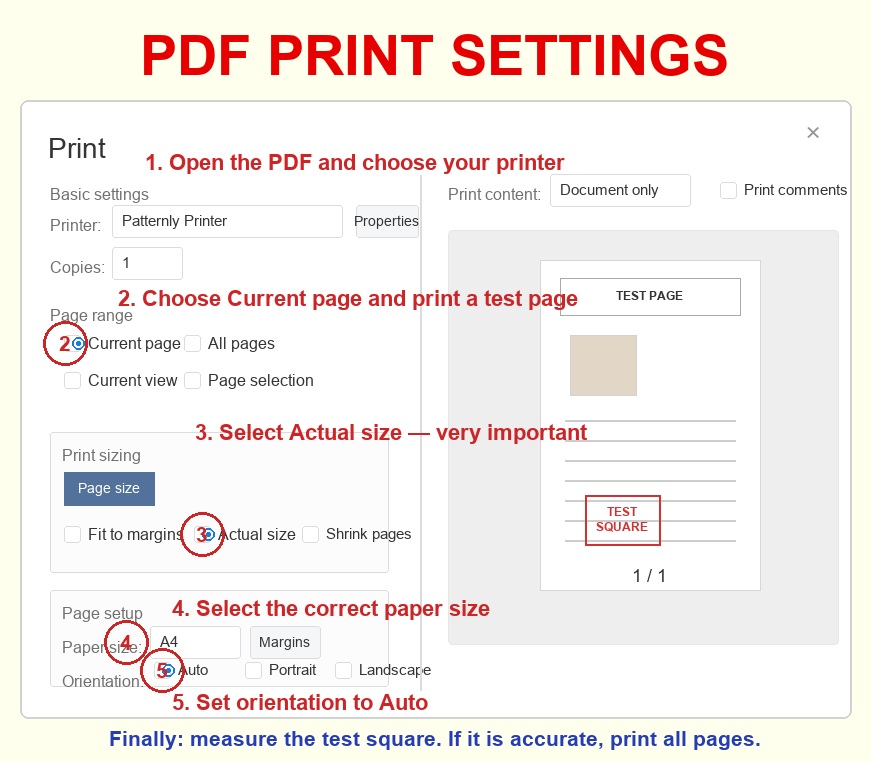
Open the PDF, choose your printer, and set the page range to Current page. Print only the page with the test square before printing the full pattern.
Set print sizing to Actual size or 100%. Do not use Fit to Page, Fit to Margins, Shrink Oversized Pages, or any automatic scaling option.
Match the paper size to the file, such as A4 for an A4 pattern file. Set orientation to Auto portrait/landscape so the printer follows the page layout.
After printing, join pages along the dashed overlap lines. When two sheets overlap, trim only one overlapping edge, not both, so alignment stays easy.
Page numbers matter. Assemble downward from the dashed line near each page number and keep the page order intact. If the tiled pages are confusing, open the A0 file to reference the overall pattern-piece layout. Overlaps are usually about 7-10 mm; if your printer margin is larger than 7 mm, adjust margins so the border prints clearly.
FAQ
The test page confirms that the pattern is printing at the correct scale. If the test square is wrong, every pattern piece will be too large or too small.
Trim only one of the two overlapping edges. Keeping the other edge intact gives you a dashed line or border to align against.
Your printer margin may be too large, or the paper size may not match the file. Check paper size, Actual size scaling, and margin settings before printing again.