
Pick the file that matches your paper
Separate the instructions from the cutting pages. Choose the A4 or US Letter file that matches the paper in the printer, or follow the supplied instructions if one file supports both. A large-format copyshop page is not automatically a home-tiled file.
Open the PDF in a reader that gives you control of print scaling. If the file offers size layers, keep the registration marks and the size or sizes you need visible.
Set up one test page
For tiled cutting pages, check these four settings:
- The paper size specified by the file.
- One page per sheet.
- Single-sided printing.
- Actual Size or 100%, with Fit and Shrink turned off.
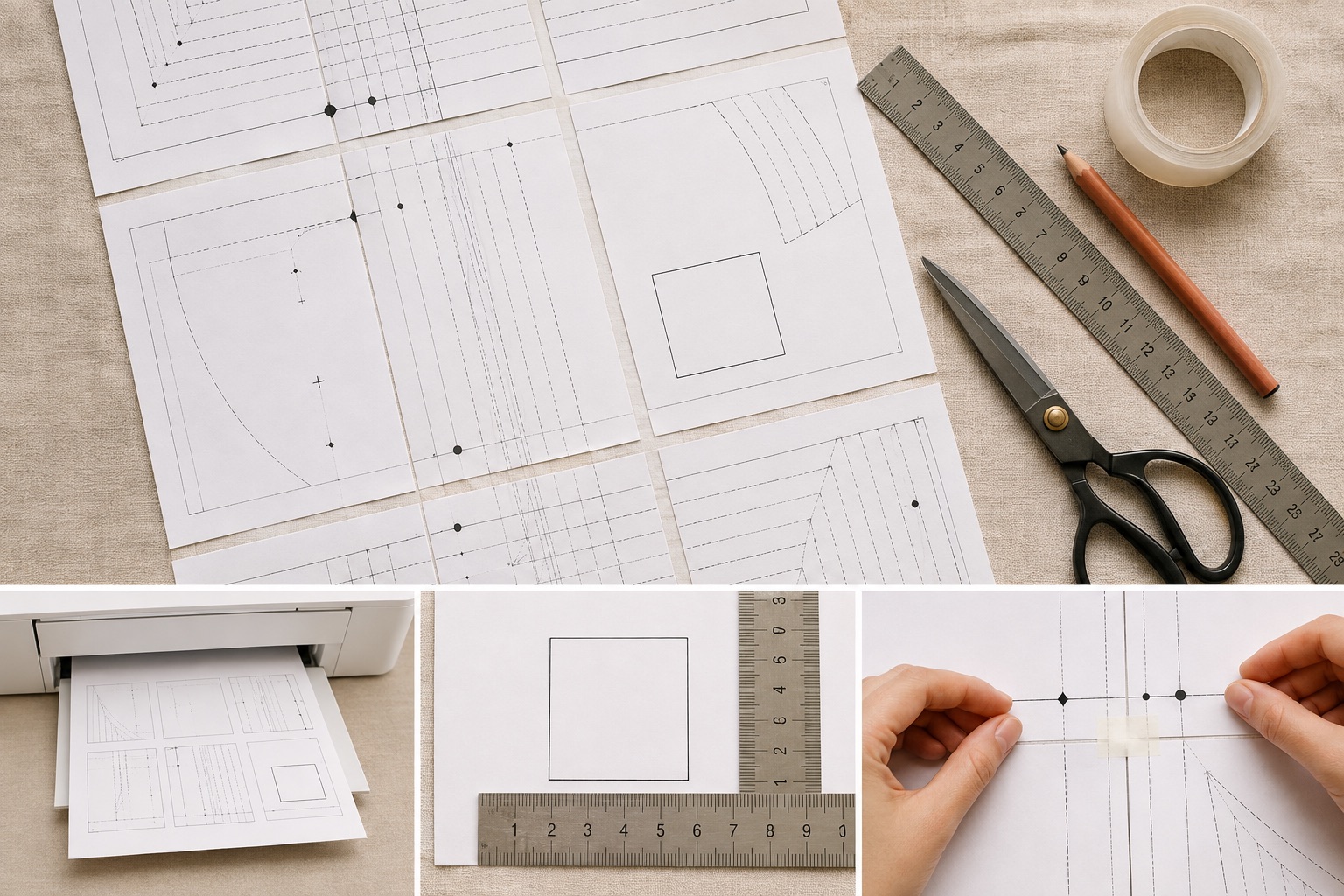
Print the page containing the test square or scale line and measure it with a ruler.
Measure both the height and width of a square. Compare with the dimension printed beside it, not with a dimension remembered from another pattern. If either direction is wrong, correct the print settings before continuing.
Adobe's page-size guidance distinguishes Actual Size from scaling to the printable area. Actual Size can clip content outside that area; fitting it changes the size.
If the scale is right but lines are missing
Check that the PDF and printer both use the intended paper size and orientation. Inspect the page on screen to see whether the missing edge is part of the pattern or a margin intended for trimming. Compare the result with the assembly instructions and the printer's printable area.
Do not turn on Fit just to reveal a clipped line. If an essential registration mark or cutting line still will not print, use a compatible printer or the appropriate copyshop file before proceeding.
Join two pages before printing the rest
After the test page measures correctly, use the page map to select and print just two adjacent cutting pages. Assemble that pair before printing the remaining pages. Trim only the borders identified in the instructions; some patterns overlap, while others meet edge to edge. Match registration marks and check that lines continue smoothly across the join.
Do not force paper edges to align at the expense of the printed marks. If the lines agree at one end but drift at the other, check rotation, trimming and scale. Solve that on two pages before building a whole row.
Assemble in manageable sections
Lay out each row according to the map. Tape enough to keep the sheets stable without covering all labels. Join rows using the same registration checks. A flat table is easier than allowing a growing sheet to hang and pull the joins apart.
Choose whether to trace the selected size or cut the working print. Keep piece names, grainlines, notches and cutting quantities. If you trace, copy those details along with the outline.
Frequently asked questions
Can I use double-sided printing to save paper?
Not for ordinary tiled cutting pages: both sides would be needed in different places in the assembled pattern. Instructions can be printed separately in a format convenient for reading.
Should I measure the paper or the printed square?
Measure the printed square in both directions and compare it with its labels. For a test line, measure between its marked endpoints.